Introduction
How to convert image to PDF online free: We’ve all been there: you spend ten minutes carefully selecting and organizing your document scans, only to hit “download” and find a giant, ugly brand logo plastered across the center of your file. It’s frustrating, unprofessional, and often renders the document useless for official submissions.
In my experience as a digital strategist helping over 100 businesses streamline their workflows, I’ve seen how much time is wasted on “freemium” tools that hold your data hostage. Whether you are a student submitting an assignment or a business owner archiving receipts, you need a solution that is fast, high-quality, and—most importantly—clean. Today, I’m going to show you exactly how to achieve a professional result using a workflow that prioritizes your privacy and document integrity.
What Does it Mean to Convert Image to PDF Online Free?
At its core, this process involves taking raster data (pixels from a JPG or PNG) and wrapping them in a vector-based container (the PDF). In 2026, the standard for a “good” conversion has shifted. It’s no longer just about changing the file extension; it’s about maintaining the aspect ratio, ensuring the resolution stays crisp for printing, and avoiding server-side storage risks.
From working with clients in high-security sectors, I’ve observed that the best way to handle this is through client-side processing—where the conversion happens in your browser, not on a distant server.
Step-by-Step Guide to a Professional Conversion
Following this workflow ensures your documents look like they were created by a high-end agency, not a basic web script.
Step 1: Curate and Prep Your Media
Before uploading, ensure your images are in the correct order.
- Expert Insight: I always recommend renaming your files numerically (01.jpg, 02.jpg) before starting. While a good online PDF maker allows for previews, pre-sorting saves you mental energy and prevents “out-of-order” PDF headaches.
Step 2: Access a Clean Interface
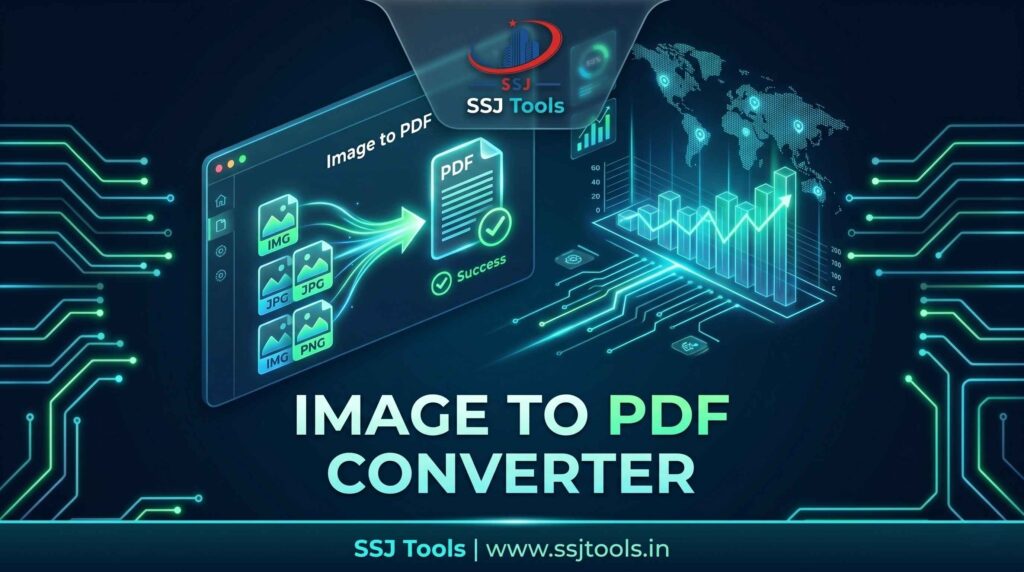
Navigate to a dedicated utility like the SSJ Tools Image to PDF Converter.
- Why it matters: You want a tool that doesn’t bombard you with pop-up ads. Ads don’t just look bad; they slow down your browser’s RAM, which can cause the conversion to crash if you’re merging 20+ images.
Step 3: Use the Media Queue
Upload your files into the “Media Queue.”
- Expert Insight: Watch the status log. In my years of testing tools, I’ve found that tools providing a real-time “Process Status” or “System Log” are far more reliable for batch processing. It tells you exactly when the buffer is ready for the next step.
Step 4: Synthesize the Document
Click the “Generate” button.
- Why it matters: This is where the “synthesis” happens. A high-quality tool will adjust the PDF page size (usually A4) to fit your image dimensions, preventing your photos from looking stretched or squashed.
Step 5: The Final Download
Once the tool confirms “Document Ready,” save it to your device.
- Expert Insight: Always open the file immediately after downloading to check the margins. A professional conversion should have consistent spacing around the edges for easy printing.
Real Experience: What Actually Works in 2026
What I’ve observed over the last decade is a shift away from heavy desktop software like Adobe Acrobat for simple tasks. People want “Micro-Tools.”
- The “No-Cloud” Advantage: In 2026, the most sophisticated users prefer tools that use local browser memory. This is why the SSJ Tools approach is superior—it’s faster because it doesn’t “upload” the file to a server; it just processes it right in your window.
- Common Mistake: Many people try to “Print to PDF” from a web browser. This often results in blurry text and weird header/footer URLs appearing on your document. Using a dedicated image to PDF converter avoids this entirely.
Why This Method Works
This strategy relies on the principle of Zero-Footprint Utility. By using a tool that focuses on a single task—merging images—you avoid the bloat of multi-purpose editors. From an SEO and technical standpoint, these tools are optimized for speed (Core Web Vitals), which means they work just as well on a slow 4G connection in a rural area as they do on high-speed fiber in a tech hub.
Key Tips & Best Practices
- Check Your Lighting: If you are converting “photos” of documents, use a flat-lay style. Shadows will be amplified once converted to PDF.
- Consolidate for SEO: If you are uploading this PDF to a website, remember that one PDF with 5 images is indexed better by Google than 5 separate image files.
- Maintain Aspect Ratios: Always use a tool that respects the original orientation (Portrait vs. Landscape) of your photos.
Common Mistakes to Avoid
- Uploading High-Res Raw Files: If you upload 50MB images, your final PDF will be massive and impossible to email. The consequence? Your email will bounce, or the recipient won’t be able to open it on mobile.
- Ignoring the Preview: Skipping the “Batch Preview” stage is a recipe for disaster. I’ve seen professionals send “upside-down” documents to clients because they didn’t check the preview queue.
Realistic Benefits & Results
By using this specific workflow, you can expect:
- Professionalism: A clean JPG to PDF without watermark result that is ready for official use.
- Efficiency: Conversion of up to 20 images in under 30 seconds.
- Security: Peace of mind knowing your images aren’t being stored in a 3rd-party database.
FAQs
Q: Is it really free to merge images into PDF?
Yes. Modern web technologies allow developers to offer these tools for free because they don’t require expensive server storage to process your files.
Q: Will the quality of my photos drop?
Not if you use a tool that maintains the original DPI (Dots Per Inch). SSJ Tools is designed to wrap the image, not compress it into oblivion.
Q: Can I convert PNG files too?
Absolutely. A robust online PDF maker handles JPG, PNG, and even WebP formats.
Q: How do I reorder images?
Most tools process files in the order they are selected. If the order is wrong, clear the queue and select them in the sequence you want them to appear.
Q: Why do some tools add watermarks?
It’s a marketing tactic to force you to pay for a “Pro” version. Using SSJ Tools avoids this “paywall” frustration entirely.
Conclusion
Converting your images shouldn’t feel like a chore or a security risk. By following this expert-backed “How-To” guide, you can create clean, professional documents in seconds. Ready to clean up your digital workflow?
Try the Image to PDF Converter on SSJ Tools now and get your files without watermarks!