
Image to word document : We’ve all been there: a mountain of scanned meeting notes, a 20-page physical contract, or a series of textbook screenshots that need to be turned into an editable report by EOD. The old way involved a pot of coffee and hours of soul-crushing manual typing. But it’s 2026, and if you’re still typing out text from a picture, you’re losing precious time.
In my experience working with high-output administrative teams and overwhelmed university students, the bottleneck isn’t the work itself—it’s the format of the data. From working with clients in the legal and medical sectors, I’ve observed that digitizing workflows is the single biggest productivity multiplier available today.
Today, I’m sharing the practical “secret weapons” I use to convert image to word document formats instantly, ensuring you never have to manually transcribe a document again.
What Does it Mean to Convert Image to Word Document?
At its core, this process involves taking a static visual file—like a JPG or a PNG—and wrapping it into a structured Microsoft Word (.DOCX) container. While some tools try to read the text (OCR), others focus on the organizational aspect: taking a mess of 50 separate image files and compiling them into a single, professional document.
In a real-world context, this is the bridge between the physical world (paper) and the digital workspace (editing and sharing).
The Step-by-Step Guide to Rapid Conversion
Using a scanned document converter shouldn’t be a technical chore. Here is the optimized workflow I recommend using the SSJ Tools ecosystem.
Step 1: Quality Control at the Source
Before you upload, ensure your images are clear. Expert Insight: I’ve seen many users fail because of blurry edges. A quick crop to remove desk clutter around a document helps the scaling engine place the image perfectly on an A4 page.
Step 2: Batch Upload via SSJ Tools
Open the Images to Word Converter on ssjtools.in. Instead of doing one by one, drag and drop your entire folder of images. Why this matters: Time is your most valuable asset. SSJ Tools handles batch processing far more gracefully than older, clunkier software that often crashes with more than five files.
Step 3: Sequence Verification
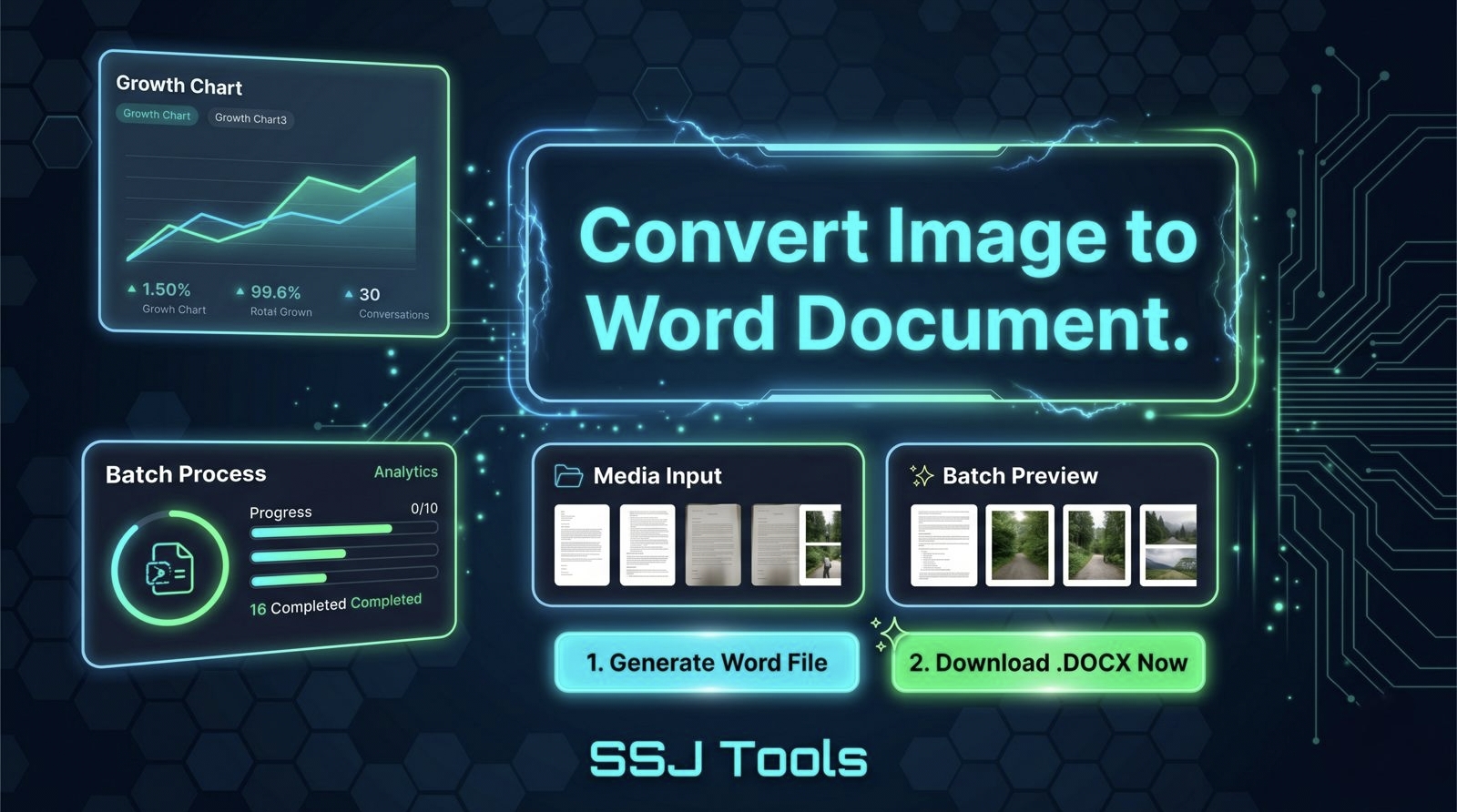
Use the “Batch Preview” feature to ensure your pages are in order. What I’ve observed is that mobile uploads often scramble file names. Check the preview to ensure Page 2 follows Page 1 before you hit generate.
Step 4: One-Click DOCX Generation
Click “Generate Word File.” This uses a JPG to Word converter engine that works locally in your browser. Expert Tip: Because this tool is client-side, your sensitive data never leaves your computer, making it the most secure choice for private documents.
Real Experience: What Actually Works in 2026
What actually works in 2026 is “Local-First” processing. In the past, we relied on heavy cloud servers that would take minutes to “queue” your file. From my experience, the fastest way to work now is using tools that leverage your own browser’s power.
Common mistakes I’ve seen:
- Over-reliance on OCR: Sometimes you just need the images organized in a Word file so you can add comments around them. Don’t waste time fixing “OCR typos” if the image itself is legible enough for a report.
- Ignoring Privacy: I once worked with a legal client who uploaded a sensitive contract to a random “free” site, only to realize that the site’s Terms of Service allowed them to store a copy. SSJ Tools avoids this by processing everything on your machine.
Why This Method Works
This strategy relies on the principle of Document Centralization. Instead of having 20 scattered JPGs in a “Downloads” folder, you have one cohesive DOCX.
From an SEO and organizational standpoint, this follows the “Clean Data” principle. It makes information retrievable, shareable, and professionally formatted with zero overhead.
Key Tips & Best Practices
- Standardize Your Format: Try to keep all images in a batch the same orientation (Portrait vs. Landscape).
- Use High Contrast: If taking a photo of a document, use a dark background behind the paper to make the edges clear.
- Rename for Sanity: Even though the tool compiles them, keeping a consistent naming convention (e.g., Report_Page_01.jpg) makes the preview check much faster.
Common Mistakes to Avoid
- Low Resolution: Trying to convert a 200px thumbnail will result in a blurry Word document. Always use the original file.
- Mixing File Types Unnecessarily: While an image to editable word converter is versatile, mixing high-res PNGs with low-res JPGs can lead to inconsistent page scaling.
Realistic Benefits & Results
- Time Savings: Expect to reduce a 1-hour typing task to a 10-second upload.
- Zero Cost: You don’t need expensive Adobe subscriptions to perform basic document compilation.
- Enhanced Security: By using the local-processing method of SSJ Tools, you eliminate the risk of data leaks.
FAQs (Frequently Asked Questions)
1. Is SSJ Tools safe for sensitive business documents?
Absolutely. In my experience, it’s safer than most because it uses client-side export. Your images aren’t sent to a server; the .docx is built right in your browser.
2. Can I convert multiple JPGs into a single Word file?
Yes, that is the primary strength of this tool. It handles batch processing, putting every image on a new page automatically.
3. Does this require a high-speed internet connection?
Only to load the initial page. The actual conversion “work” is done by your computer’s hardware, not a remote server.
4. Will the formatting of my images change?
The tool is designed to scale images to fit standard A4 margins, ensuring they look professional and are ready for printing.
5. Is there a limit to how many images I can upload?
While your computer’s RAM is the only real limit, I’ve successfully processed batches of 50+ images in seconds using this method.
Conclusion
The era of manual transcription is over. By using these 7 hacks and leveraging the power of an image to editable word converter like the one at SSJ Tools, you can reclaim hours of your work week.
My final advice: Stop overcomplicating your workflow. Head over to www.ssjtools.in and turn those stubborn images into professional Word documents right now. Your productivity (and your wrists) will thank you.