
In the world of high-performance web development, website image optimization is often the difference between a site that feels “snappy” and one that frustrates users. In my experience, the biggest bottleneck to achieving a 90+ score on Google PageSpeed Insights isn’t the JavaScript—it’s the legacy raster images clogging the network pipeline.
By strategically replacing bulky PNGs and JPEGs with Scalable Vector Graphics (SVG), you can drastically improve LCP (Largest Contentful Paint) and create a more stable user experience. This guide outlines the expert workflow for auditing your assets and migrating to a leaner, vector-first architecture.
The Heavy Asset Audit: Identifying the LCP Culprits
How unoptimized PNGs and JPEGs act as “silent killers” for Largest Contentful Paint (LCP)
From working with clients, I’ve observed that the LCP element is almost always a hero image or a large branding logo. When these are served as high-resolution PNGs, the browser must wait for the entire multi-megabyte file to download before rendering the “above-the-fold” content. This “silent killer” delay tanks your Core Web Vitals before the user even sees your value proposition.
Visualizing the waterfall: Analyzing network payloads in Chrome DevTools
If you open Chrome DevTools and look at the Network tab, pay attention to the “Waterfall” column. In practice, you’ll see raster images taking up long, horizontal bars. These represent time spent in DNS lookup, connection, and data transfer. Replacing these bars with tiny, inlined code blocks is the goal of any serious developer.
The relationship between image file size and the Critical Rendering Path
The Critical Rendering Path is the sequence of steps the browser takes to convert HTML, CSS, and JS into pixels. Heavy raster files force the browser to pause this sequence. Small, optimized SVGs, however, are essentially just text, meaning they can be parsed almost as fast as your HTML, keeping the rendering path clear.

Beyond Pixels: The Performance Mechanics of SVG
Understanding the mathematical footprint: Why XML code beats a pixel grid
A PNG is a grid of millions of colored dots. An SVG is a set of mathematical instructions (XML). For UI elements like icons, decorative shapes, and logos, an XML instruction like “draw a circle here” is thousands of times smaller than a grid describing every pixel of that same circle.
The “Single Request” Advantage: How inlining SVG code eliminates unnecessary HTTP calls
One of the best web performance tools at your disposal is the ability to “inline” SVG code directly into your HTML. By doing this, you reduce the number of HTTP requests. Instead of the browser saying “Go get logo.png,” the logo is already there inside the HTML file.
SVG vs. PNG for Web: A side-by-side comparison of execution and rendering speeds
In a head-to-head battle, SVG vs PNG for web isn’t even close for simple graphics. An SVG renders virtually instantly because the browser’s drawing engine is optimized for paths. A PNG requires memory decompression, which can add lag on low-end mobile devices.
Step 1: The Tactical Swap — Migrating Icons and Logos
Identifying “Vector-Ready” candidates in your current media library
Not every image should be an SVG. In my experience, you should look for logos, navigation icons, social media buttons, and geometric background patterns. These are the “low-hanging fruit” that provide the biggest performance ROI.
Utilizing the [Image to SVG Converter] to bridge the gap
If you have legacy assets where the original vector source was lost, you can use an image to SVG converter to wrap those raster images into a scalable container. This allows you to at least standardize your file types and prepare for a full vector migration later.
Actionable Workflow: How to batch-convert assets without losing coordinate precision
When converting, ensure you are using a tool that maintains the “viewBox” integrity. A common workflow is to upload your sharpest PNG, run it through the converter, and immediately verify the XML output for any unnecessary “bloat” or hidden metadata tags.
Step 2: Solving Cumulative Layout Shift (CLS) with Vector Containers
The role of viewBox in defining aspect ratios before the image even loads
To reduce CLS, the browser needs to know the “space” an image will occupy before it actually downloads. The viewBox attribute in an SVG acts as a blueprint. It tells the browser the exact aspect ratio, allowing the layout engine to reserve space and prevent the page from “jumping.”
Why SVGs are the ultimate tool for preventing “Layout Jumpy-ness”
Because SVGs are code, they are parsed before the external images are fetched. This means your header and navigation stay perfectly still while the rest of the page loads, providing a much smoother user experience on mobile viewports.
In-practice: Setting explicit width/height in CSS vs. the SVG attribute
I always recommend setting the width and height attributes directly on the SVG tag to provide a “hint” to the browser, and then using CSS for responsive scaling (e.g., width: 100%; height: auto;).
Step 3: Advanced Deployment — Data URIs and CSS Integration
The “Developer’s Secret”: Using Data URIs for instant-load UI patterns
For small background textures, you can use Data URIs. This embeds the SVG directly into your CSS file. The result? The background loads the moment the CSS is parsed—no waiting for a separate image download.
Managing global styles: Controlling SVG colors via CSS (currentcolor)
A massive advantage of SVGs is that they are styleable. By setting the fill attribute to currentcolor, you can change the color of your icons using your standard CSS text color rules. This eliminates the need for “hover-state” image files.
Optimizing the XML: Removing metadata bloat
Many design programs export SVGs with comments, editor metadata, and redundant paths. Always run your code through an optimizer to strip these out. Every byte saved is a millisecond gained.
The “Green Score” Checklist: Testing the Impact
Re-running PageSpeed Insights: What to look for
After your migration, look at the “Avoid enormous network payloads” and “Ensure text remains visible during webfont load” sections. You should see your SVG assets taking up negligible space.
Measuring the DOM size vs. total page weight
Be careful not to over-inline. If your HTML file grows too large because of massive SVG paths, it can negatively impact your “DOM Size” metric. Balance is key.
Real-world experience: Why weight isn’t everything
I’ve seen cases where a 50% reduction in weight didn’t move the needle because the server’s Time to First Byte (TTFB) was too slow. Website image optimization is a huge part of the puzzle, but it must work alongside a fast server and efficient caching.
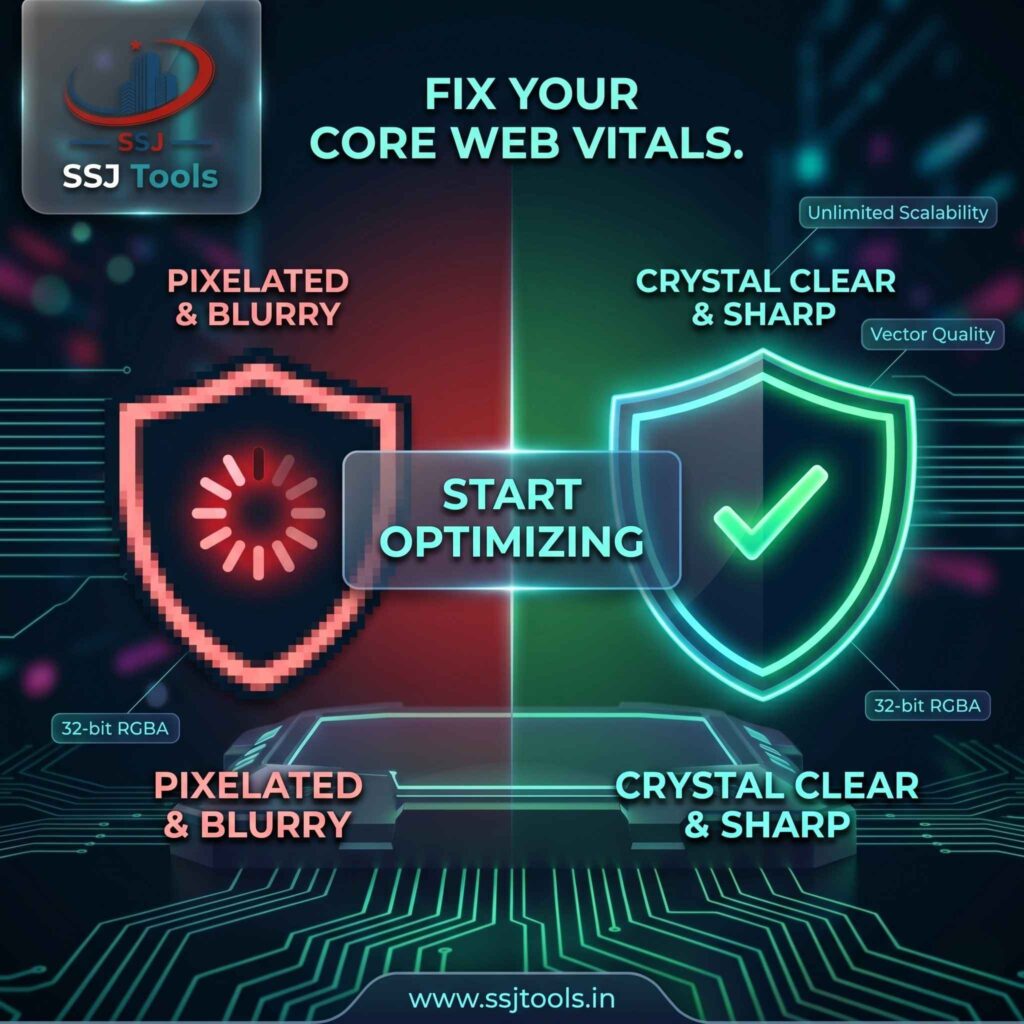
Common Pitfalls in the Raster-to-Vector Pipeline
- The “Complex Path” trap: Never try to convert a high-detail photograph into a true path-based SVG. The resulting XML file will be massive—often 10x larger than a JPEG.
- Ignoring accessibility: Always include a
<title>tag inside your SVG and userole="img"so screen readers can describe the icon to visually impaired users. - Over-reliance on external files: If an icon is used on every single page, inline it. If it’s used only on one obscure page, link it as an external file.
The Knowledge Hub: SVG FAQs
LCP Impact: How exactly does converting a logo to SVG improve my Largest Contentful Paint?
It moves the “discovery” of the image earlier in the rendering timeline. Since the browser doesn’t have to wait for an external network request, it can paint the logo the moment it parses the HTML.
SEO Value: Can Google Search index the text or content inside my SVG files?
Yes! Unlike a flat PNG, the text inside an SVG is readable by Google’s crawlers, providing an additional (though minor) SEO boost for keyword-rich graphics.
WordPress Compatibility: How do I safely use SVGs?
WordPress disables SVG uploads by default for security. You should use a reputable plugin like “Safe SVG” which “sanitizes” the XML code to prevent XSS attacks.
Performance Scaling: When is an SVG too complex?
If your SVG has thousands of paths (like a detailed map), the browser’s CPU has to work hard to “draw” it. If you notice a lag when scrolling near an SVG, it’s too complex—use a WebP instead.
Browser Support: Do modern browsers struggle with SVG Data URIs?
Not anymore. All modern browsers (Chrome, Firefox, Safari, Edge) handle SVG Data URIs perfectly. The only thing to avoid is using them for extremely large files.