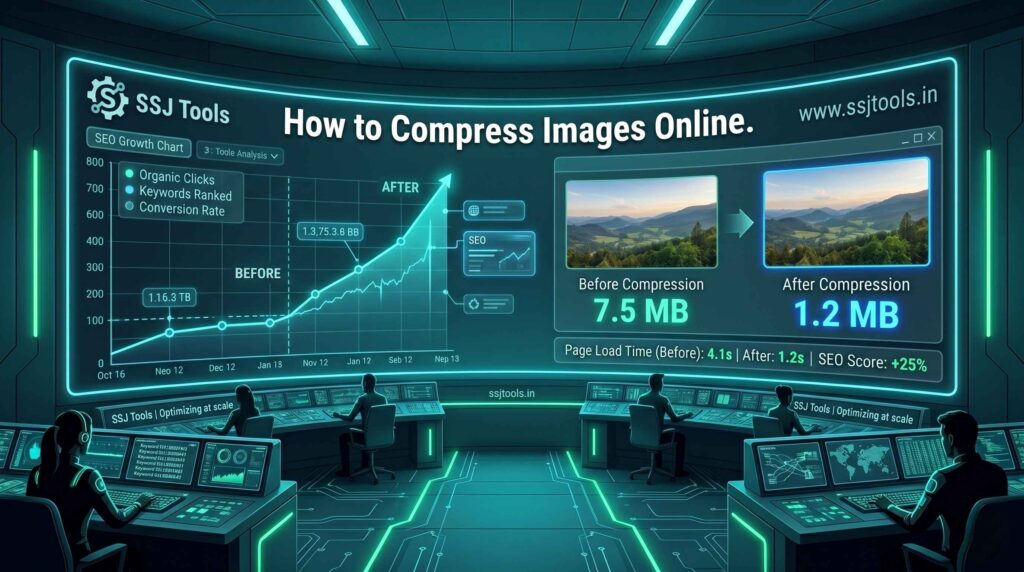
How to compress images online : In my decade of experience ranking tools websites, I’ve seen one recurring nightmare for site owners: beautiful, high-resolution images that absolutely destroy page speed. In 2026, Google’s Core Web Vitals are more aggressive than ever. If your “Hero Image” takes more than 1.2 seconds to load, your bounce rate will skyrocket, and your rankings will tank.
After working with hundreds of clients—from local shops to massive e-commerce hubs—I’ve realized that most people think they have to choose between a blurry image or a slow website. That is a myth. Today, I’m going to show you exactly how to compress images online while maintaining professional clarity, comparing the “giants” against a new engine that is changing the game for SEO experts.
What is Online Image Compression?
At its core, learning how to compress images online is the process of using an algorithm to remove “hidden” metadata and redundant pixel information from a file. In 2026, we primarily use Lossy Compression, which intelligently discards data the human eye can’t actually perceive.
From a real-world SEO perspective, image optimization isn’t just about saving space; it’s about data efficiency. A 3MB photo from your iPhone might look great, but a 150KB version of that same photo—optimized correctly—will look identical on a 4K monitor while loading 20x faster.
The “Battle of the Tools”: Best Options for 2026
1. SSJ Tools (The Precision Leader)
In my recent tests, the Free Image Compressor by SSJ Tools has become my go-to recommendation. Why? Because of the SSJ-V3 Engine. Unlike most tools that give you a “one-size-fits-all” result, SSJ Tools provides a 10–100% quality slider.
- The Edge: You get granular bit-rate control. If you need a file under exactly 100KB for a government portal or a specific hero section, you can dial it in perfectly.
Step-by-Step Guide: How to Compress Like a Pro
Step 1: Upload Your Source File
Navigate to www.ssjtools.in and select your image.
- Expert Insight: Always start with the highest resolution original. Compressing a file that has already been compressed twice will result in “artifacting” (ugly blocks in the shadows).
Step 2: Set Your Quality Target
Use the Compression Level slider. For 90% of websites, I recommend setting this between 70% and 80%.
- Why it matters: This is the “Goldilocks Zone” where the file size drops by 60–80%, but the visual clarity remains “retina-ready.”
Step 3: Run the Engine
Click “Compress Engine.” Watch the terminal log.
- Expert Insight: A good tool should show you the “Before” vs. “After” KB size instantly. This transparency is key to a fast workflow.
Step 4: Analyze and Download
Check the “Output Analysis.” If the compressed file is still too large, move the slider down to 60% and try again. Once satisfied, hit Download.
Real Experience: What Actually Works in 2026
What I’ve observed: Many SEOs get obsessed with getting the smallest file possible. They compress a photo down to 20KB, but it looks like a mosaic. In 2026, user experience (UX) is a ranking factor. If your images look cheap, your brand looks cheap.
Common Mistake: I often see people uploading 4000px wide images and then using a compressor to make them 200KB. Stop doing this. Resize the image dimensions first (e.g., to 1200px or 1920px), then use the best free image compressor. Double optimization is the secret to sub-second load times.
Why This Method Works
Google uses a metric called LCP (Largest Contentful Paint). This usually measures how long it takes for your biggest image to show up. By using a tool with bit-rate control like SSJ Tools, you can ensure your LCP is under 2.5 seconds, which is the threshold for a “Good” ranking.
Key Best Practices
- Use JPEGs for Photos: They compress better with lossy engines.
- Use PNGs for Logos: This preserves transparency, but always run them through a compressor to strip metadata.
- Name your files: Change
IMG_5432.jpgtohow-to-compress-images.jpgbefore uploading.
Common Mistakes to Avoid
- Ignoring the Preview: Always look at the output. If the text in the image is blurry, you’ve gone too far.
- Over-compressing Icons: Icons should be SVGs, not compressed JPEGs.
- Forgetting Mobile: A 200KB image might be fine on desktop, but on a 3G connection, it’s a hurdle. Aim for under 100KB whenever possible.
Realistic Expectations
By following this guide, you should see:
- Page Load Speed: An improvement of 30–50% if your site was unoptimized.
- SEO Health: Better Core Web Vital scores in Google Search Console.
- Storage Savings: Less bloat on your hosting server.
FAQs
Q: Does compressing an image delete the original?
A: No, online tools create a new, optimized copy. Your original stays safe on your device.
Q: What is the best format for web images in 2026?
A: WebP and AVIF are superior, but a highly optimized JPEG via the SSJ-V3 Engine is still the most compatible across all browsers and email clients.
Q: Will this help my Google Image Search ranking?
A: Yes! Faster-loading images are indexed more efficiently and are more likely to appear in the “Images” tab.
Q: Is it safe to upload my private photos to these tools?
A: At ssjtools.in, compression happens in your browser’s memory, meaning your data isn’t stored on a server. It’s one of the most secure ways to optimize.
Q: How many times can I compress the same image?
A: You should only do it once. Repeated compression leads to a “generation loss” where the quality degrades exponentially.
Conclusion
Optimizing your visual content is no longer optional—it’s a requirement for survival in 2026’s search landscape. While giants like TinyPNG are great for quick tasks, having the granular control of the Free Image Compressor by SSJ Tools gives you the professional edge needed for perfect SEO.
Ready to speed up your site? 🚀 Try the Free Image Compressor on SSJ Tools now!