We have all been there. You need to pull a clean graphic out of a document or post a slide deck to social media, but you are stuck wondering how to convert pdf to image formats quickly. Usually, this simple task turns into a tech headache.
From working with clients, I have found that most people just want a fast, direct path to convert pdf pages to images. They do not want to register for a service or install heavy programs. This guide walks you through a simple, software-free method to get clean, high-definition images directly inside your web browser using the SSJ PDF to Image Converter.
The Friction of Traditional Document Conversion
Why Desktop Software Installations Kill Your Momentum
In my experience, downloading desktop application suites just to change a file format ruins your workflow. These programs are often massive, slow down your computer, and constantly ask you to pay for premium upgrades. For a quick task, the time spent installing software is simply not worth it.
The Privacy Risk: Do You Know Where Your Uploaded Files Actually Go?
What I’ve observed over the last decade is a growing and valid fear regarding data privacy. When you use a standard, server-based tool to convert pdf file to image online, your document travels to an external server. If you are handling private medical records, financial statements, or legal contracts, sending your data to a third-party cloud server presents a major security vulnerability.
Breaking Down the 3-Step Local Browser Shortcut
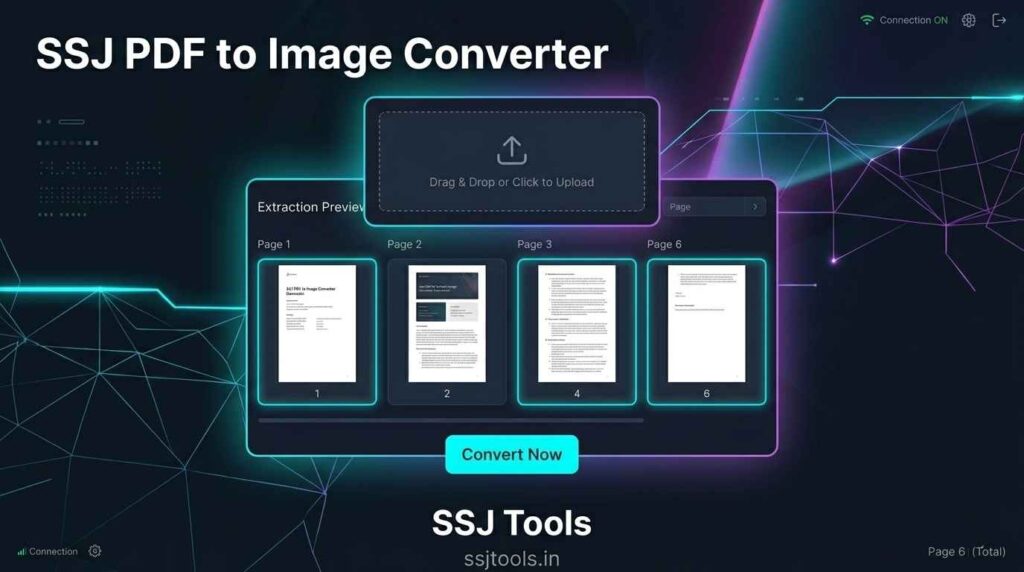
To bypass these headaches, a local web-app workflow is the best solution. Here is how to complete the process smoothly in three simple actions using our browser tool.
Step 1: Selecting Your Source File Safely in One Click
First, click the upload box on our clean dashboard interface. Select the specific document from your local storage. Because our utility reads the file locally, it does not copy or transfer your private records across the internet.
Step 2: Running the Local Extraction Machine
Once your document is selected, the vibrant conversion button lights up. Click it to unlock the processing sequence. The tool processes the document page by page right inside your browser window, eliminating external web traffic or long upload wait times.
Step 3: Auditing the Visual Grid and Saving Your HD Files
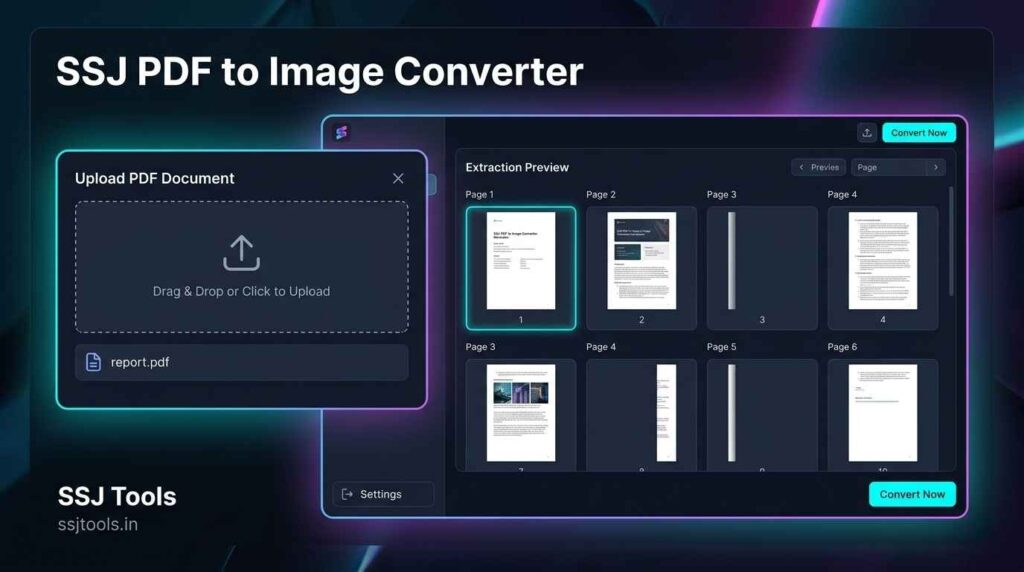
As the conversion wraps up, your pages populate a visual grid workspace. Here, you can review each layout immediately. Instead of forcing you to download a large, unorganized ZIP file, you can simply click the download button below any specific page thumbnail to grab a clean, standalone file.
Real-World Experience: When This Workflow Saves My Day
Repurposing Multi-Page Lead Magnets for Social Media Decks
In practice, I frequently need to turn parts of corporate whitepapers or data reports into visual carousel posts for platforms like LinkedIn. Running a document through this quick interface lets me pull individual visual assets out of a multi-page file in seconds, keeping my content production pipeline moving.
Quick Proofing: Auditing Design Layouts on Your Smartphone Browser
Another common workflow occurs when I am away from my desk and a client sends over a new layout design. Using this responsive system on a mobile phone lets me visually break apart the document panels instantly. I can inspect individual pages without waiting for heavy desktop viewers to load.
Common Mistakes That Ruin Digital Document Transitions
Forcing Low-Resolution Captures via Manual System Screenshots
A frequent mistake I see people make is trying to manually screenshot their screens to extract an image. This approach degrades graphic quality. Screenshots inherit your monitor’s display limits, which makes small text blurry, pixelated, and hard to read when shared.
Uploading Unlocked, Sensitive Client Contracts to Shared Cloud Queues
Many professionals casually drop proprietary business plans or sensitive client documents into unknown online converters. This compromises data integrity. If a remote processing platform experiences a server breach, your private data could be exposed.
Best Practices to Convert PDF File to Image Online with Perfect Clarity
Maintaining Crisp Text Contrast by Working with Uncompressed Layouts
To ensure your text stays perfectly legible, always convert to a high-quality format like PNG. Our local tool automatically scales the document vector elements to double their size during rendering. This hidden boost keeps your typography sharp and clear, even when scaled down.
Creating Local Folder Hierarchies Prior to Bulk Document Extraction
When you need to learn how to convert pdf pages into jpg or PNG formats across a large project, organization matters. I highly recommend creating a dedicated target folder on your computer before clicking download. Saving your page assets directly into a clean folder keeps your desktop tidy.
The Practical Benefits of Browser-Based Processing
Blazing Fast Processing Speed Built Directly on Your Device Resources
Because this system processes everything directly on your device rather than sending data back and forth to an external cloud machine, it works instantly. Your processing speed depends on your device hardware, making it much faster than waiting on crowded web server queues.
No Sign-Ups, No Volume Caps, No Strings Attached
Most tools lock advanced features behind a wall after a few uses. SSJ Tools operates with an open philosophy. There are absolutely no email sign-up boxes, no hidden subscription costs, and no page limits to stop your progress.
Performance and Security Questions Answered
How to save pdf as image without losing the crisp text alignment?
To maintain absolute text clarity, use a browser tool that renders your document at an elevated visual scale. Our local system processes pages at double resolution, ensuring fine print and crisp vector geometries remain perfectly readable without blurriness.
Can you convert pdf pages into jpg or png files securely when working offline?
Yes. Because the core engine operates entirely within your web browser sandbox using local client-side scripts, you can completely disconnect your device from the internet after loading the web page and still extract your files perfectly.
Is it safe to drop legal or financial files into an online converter?
It is not safe if the converter uploads your files to a distant database server. However, using a local browser tool like SSJ Tools keeps your files completely on your machine. Your documents never touch external networks, ensuring maximum safety.
What is the fastest way to extract specific, individual pages from a 100-page document?
Instead of generating a massive ZIP archive of the entire document, our interface creates an interactive thumbnail grid. This allows you to visually scan your document layout and download only the specific pages you need with a single click.
Will this method work identically across mobile devices like iPhones or Android tablets?
Yes. The website dashboard layout is completely responsive. It executes directly inside any modern mobile web browser app, meaning you do not have to install sketchy third-party converter applications from mobile app stores.
Seamless Document Workflows Await
Bookmark Our Free Tool Hub to Unlock Instant Access Anytime
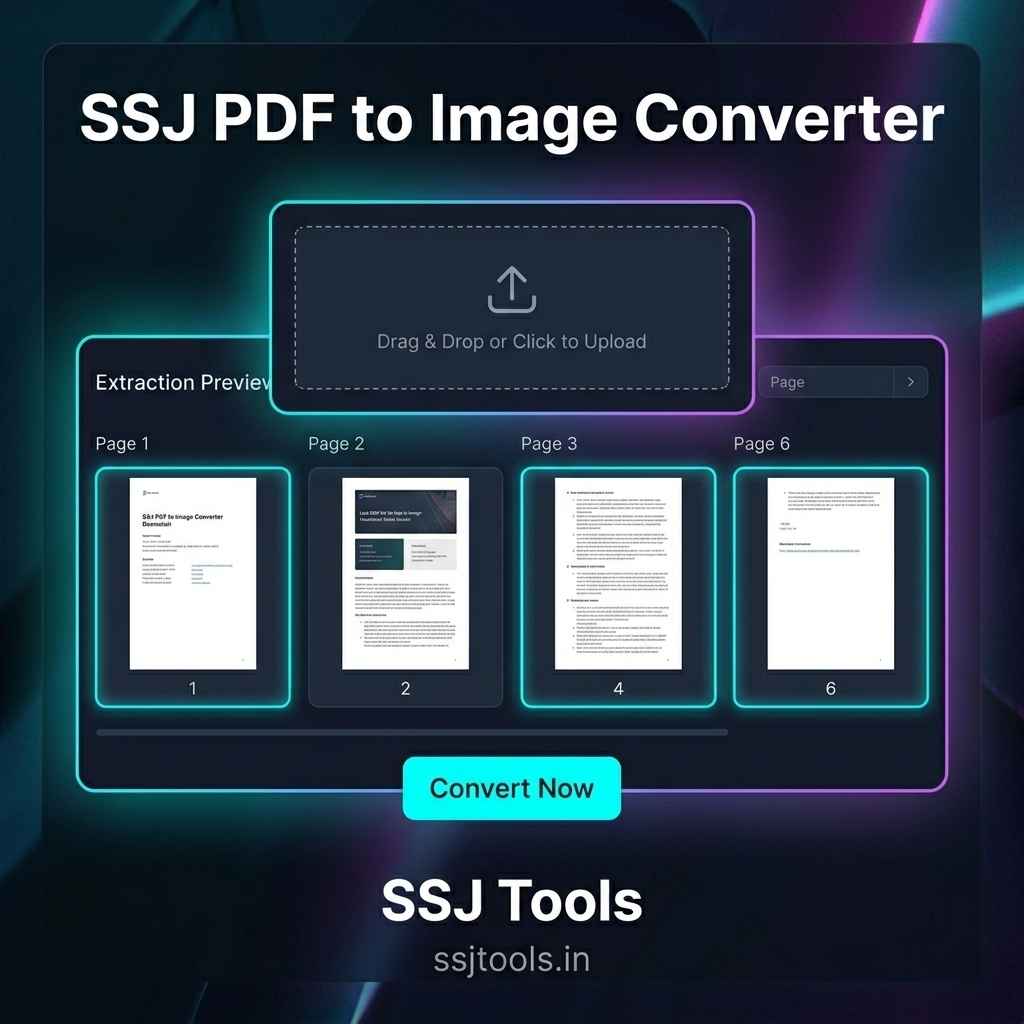
Stop wasting valuable time dealing with complicated software programs or risky upload platforms. Bookmark the PDF to Image Converter on SSJ Tools by visiting www.ssjtools.in to keep a secure, lightning-fast productivity asset directly in your browser tab.